
This one comes from a real day I just lost.
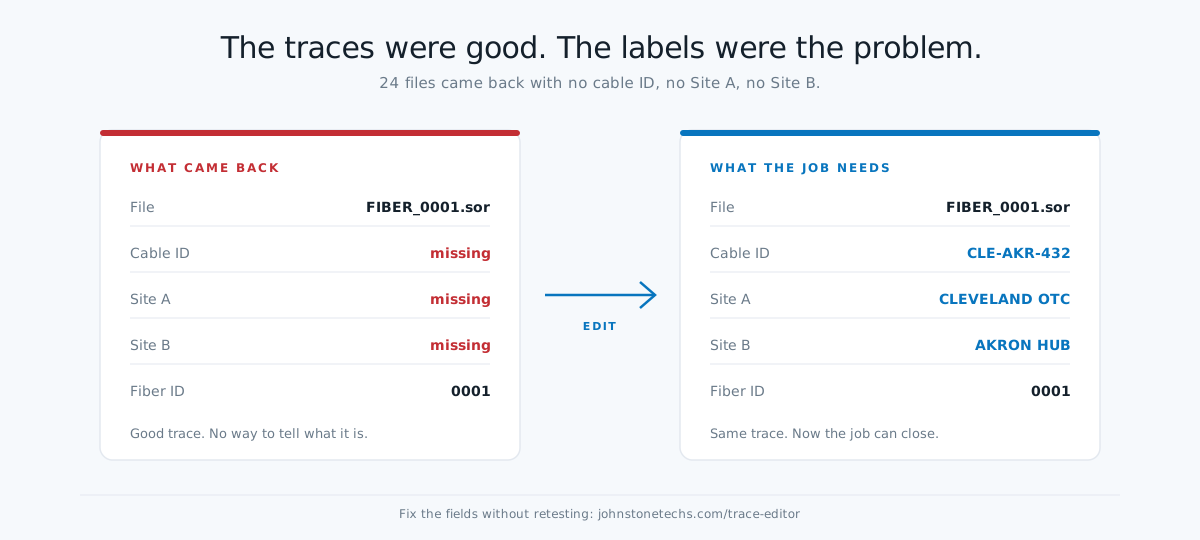
One of my techs was testing in another state. He finished the job, all 24 fibers shot and saved, and started packing up. Then he looked at the files. No cable ID. No Site A. No Site B. Just a generic fiber ID on every trace.
His plan was to go back and retest everything. A full day of work to fix a labeling problem.
I told him to send me the files instead. He emailed them over, I opened each one, typed in the cable ID, Site A, Site B, saved it, and moved on to the next. 24 files. Between the emailing back and forth and the one-at-a-time editing, we lost half a day.
Then, after it was all done, I remembered something. I'd been building a tool that does exactly this.
Why this happens
Every OTDR has a setup screen. Cable ID, Site A, Site B, fiber number, operator, job info. You fill it in before you shoot, and every trace saves with the right identifiers.
Some techs fill it in every time. Some forget. Some fill it in on the first cable, then the OTDR keeps auto-incrementing through the second cable and now half the files carry the wrong IDs.
Either way, the result is the same. The traces are good but nobody can tell what they are. The engineer can't build the acceptance report. The customer can't verify what was tested. The job won't close.
And the old answers are both bad. Retest everything, or open every file one at a time in the native software.
Three ways to fix it
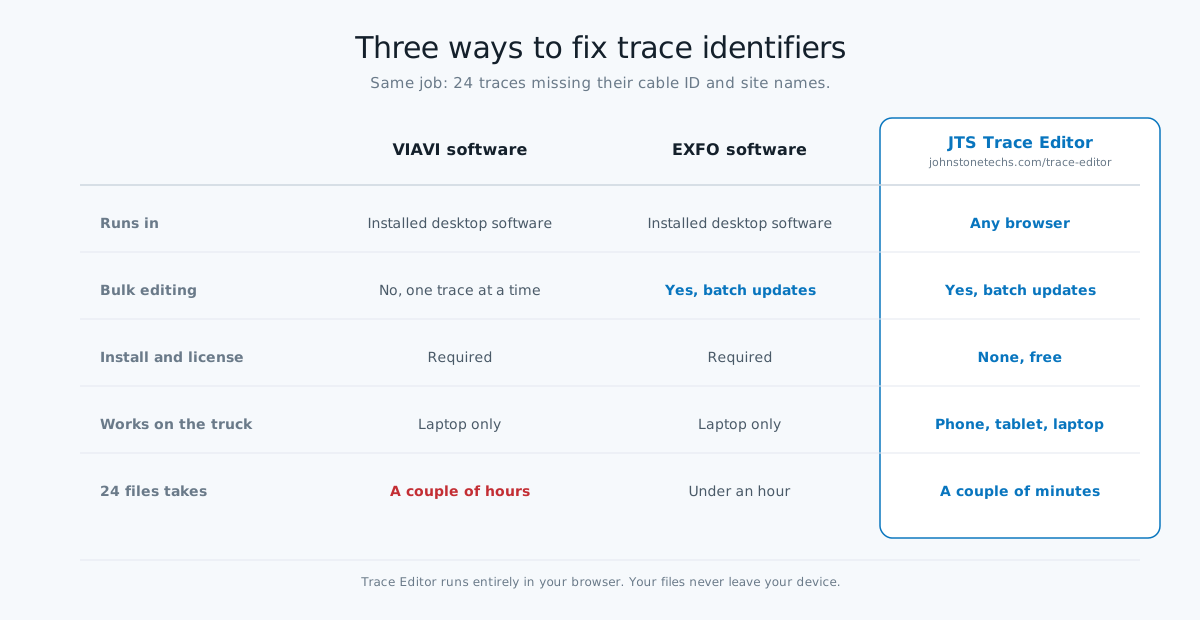
VIAVI software. If your traces came off a T-BERD, you can open them in VIAVI's desktop software and edit the identifiers. One trace at a time. One field at a time. It works, but 24 files is a couple of hours. There's no bulk edit.
EXFO software. EXFO can handle bulk updates. Select a batch of files in FastReporter, edit the common fields once, apply to all. If you're an EXFO shop with the software installed and licensed, this is the fastest native option. The catch is the same as VIAVI: it lives on a laptop with the software installed. Not on the truck. Not on your phone.
The File Editor & Rename Tool at johnstonetechs.com/trace-editor. Open your files in the browser, edit the identifier fields, save the corrected files. It started as a trace editor and reads OTDR traces (.sor, .msor, .trc) plus EXFO power-meter files (.opm) today, with more fiber file types on the way. No install, no license, no account. Works on anything with a browser, and your files never leave your device, same as the fiber analyzer.
And it does the whole job at once. Load a batch, or drag in a whole zipped job folder, and set any identifier field once (cable ID, fiber ID, Site A/B, cable code, operator, comments) across every file. Find and replace swaps a wrong site code or a repeated typo across the entire job in one pass, file names included. It auto-numbers fiber IDs down the list, renames files to match their own identifiers, and drops a change log (before and after) into every download so you keep a record. The 24 files that cost me half a day would have been a couple of minutes.
Fix and rename your files now. Open the File Editor & Rename Tool in your browser — no install, no account, files never leave your device.
Open the File Editor →How I ended up building this
I didn't set out to build a trace editor.
I was polishing and testing the fiber analyzer, and I needed sample traces I could share publicly. Real traces have customer data in them. Cable IDs, site names, job information. Before I could use any of them as samples, I had to strip that out.
So I started tinkering with a way to edit those fields without opening the native software every time. And somewhere in that tinkering it turned into a working editor.
Sometimes you have to trip over your own solution before you see it.
Reading traces, not relabeling them? The Fiber Trace Analyzer opens the same .sor, .msor, and .trc files and shows span length, loss, reflectance, and a full event table — free, in your browser, files never leave your device.
Open the Fiber Analyzer →Where it's going
Since that lost day, it's grown well past a trace editor. It now does find and replace across a whole job, imports a zipped job folder, reads power-meter (.opm) files alongside OTDR traces, and drops a change log into every download. The goal from here is simple: handle every fiber file you work with, not just traces. Templates are next, so a job's identifiers can be entered once and reused across jobs.
If you use it and there's a file type or a feature you need, tell me. That's how the analyzer got better, and it's how this will too.
The short version
If your files came back with missing or wrong identifiers, you don't have to retest and you don't have to install anything. Open them at johnstonetechs.com/trace-editor, fix the fields or rename the files, save, done.
The testing was good. The labels were the problem. Fix the labels.